

Feedback Loop includes a highly flexible released results feature where survey results can be anonymized and shared back to students as a performance report. Results release can be scheduled when surveys are created, or handled manually with the release results button within the instructor's view of a survey. It is even possible to set some questions to be released while others are kept private for instructor view only.
How to Release Results of a Feedback Loop Survey
There are two ways to release results, depending on your preference:
- Manually release a survey's results with the Release Results button within a survey, or,
- Schedule results release within a survey.

What is Included in the Released Results Report
Released results zero in on any gaps between a student's self-assessment and the results they received from their peers while also showing absolute scores received for each question and category of questions. Released results are aggregated and anonymous. Students only see their personal results, not the results of any other students.
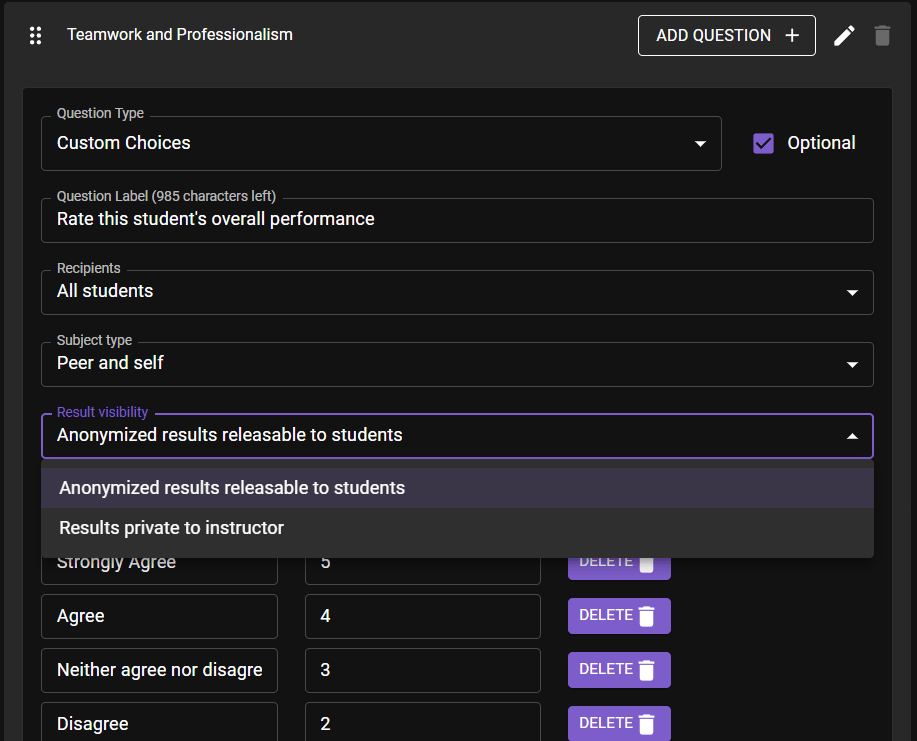
When creating or editing a survey template, each question can be set to be anonymously releasable, so that students see their performance, or private for instructor view only. The most common pattern in our usage data is for scale-based questions to be releasable and free text/comments to be private for instructor view only. For this reason, Feedback Loop defaults to releasing scale questions and keeping comments private, though this can be changed in the template editor. For more details on per-question releasability, click here.
Below is an example report a student will see when you release a survey's results. Students can view this within their LMS, receive an email notification once their report is ready to access and can export it to PDF.

Instructors can preview these dynamic, released results reports and this article explains how.
Change Your Mind? Retract Released Results
Released results can be retracted by an instructor. To retract released results, navigate to the survey management page, click the three dots menu in the top right and click Retract Results. This blocks student view of their released results.


