

How to Match Teams in Feedback Loop
Team matching in Feedback Loop makes it easier than ever to build optimal student teams. You can still import student teams directly from your Learning Management System but if you prefer to match your teams right in Feedback Loop, here is how to set that up:
1. Navigate to Teams and click Match Teams

2. Set your Matching Preferences from our available criteria bank or create a custom criterion or click Randomize Teams. Note that Matching Preferences can be saved for reuse in future courses.

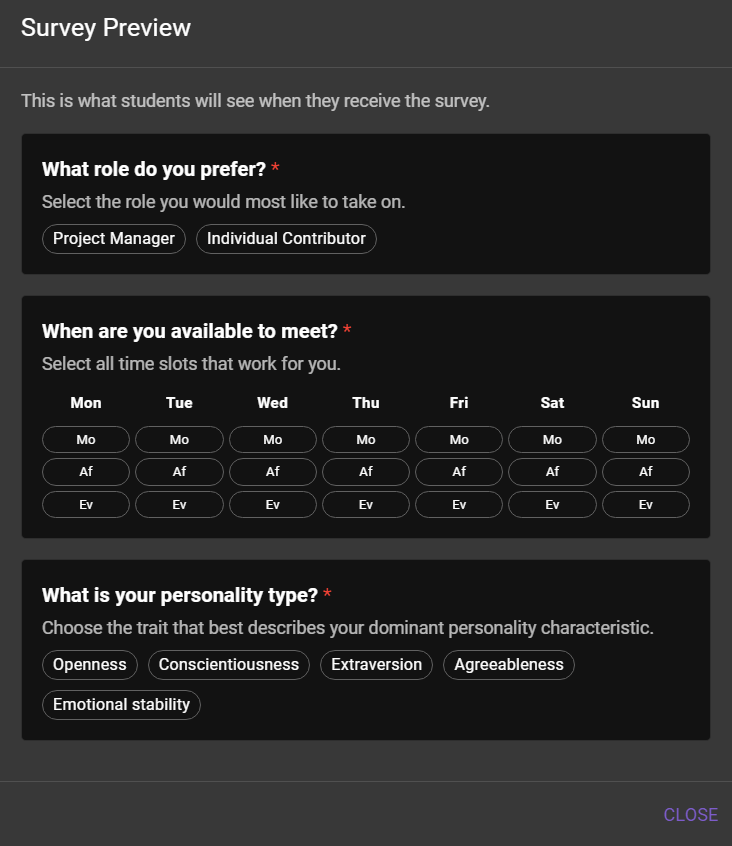
3. Click Preview Survey to see exactly how your questionnaire will look to students.

4. Define your desired team size, survey due date and add any custom message you want to include in the matching survey email notification to students.
5. Click Send Matching Survey. Once your matching survey opens, students receive an email notification with a direct link to complete the survey.
6. Review proposed teams (including any highlighted matching conflicts) and adjust manually if needed. To make adjustments, drag and drop any student or use the dropdown team assignment selector to move students between teams. When you are finished, click Done Editing to finalize your student teams..


