Feedback Loop can be integrated with D2L Brightspace for the ultimate solution for Brightspace surveys and peer feedback right inside your LMS.
This article explains how to send Feedback Loop surveys as a Brightspace assignment to bring the power of Feedback Loop’s peer feedback surveys to Brightspace for an integrated, seamless user experience. Brightspace does not currently support automatically creating assignments when survending a Feedback Loop survey, but, with a couple of clicks, instructors can link an assignment they create to a Feedback Loop survey. This works for any surveys that have been previously sent or scheduled.
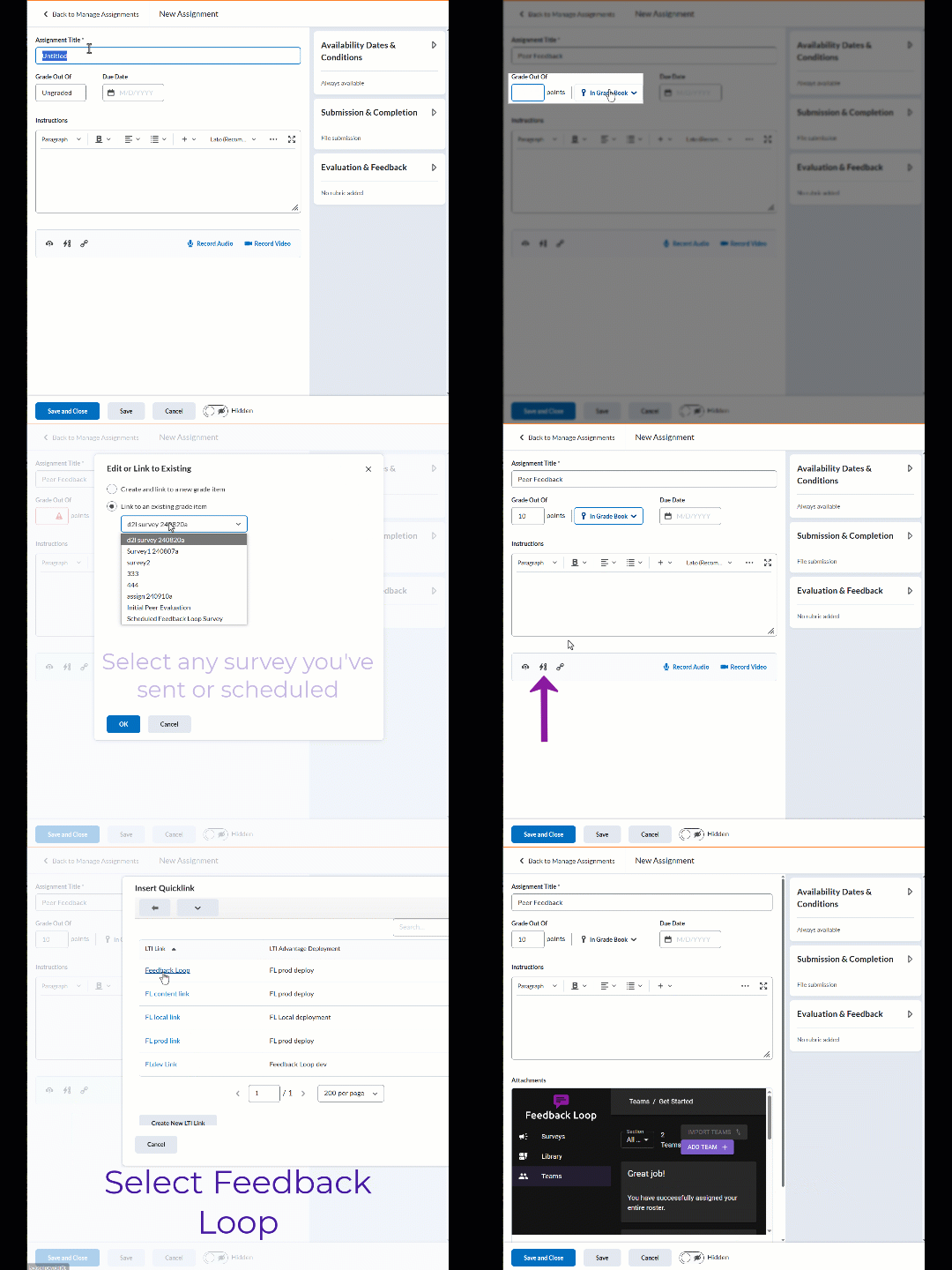
- Create a survey in Feedback Loop: either send a survey or schedule a survey to send at a later date.
- Create an assignment in D2L Brightspace


3. Click Attach Link to Existing Activity button (bolt and chain link, pictured below) at the botton of the new assignment page and select External Learning Tools and click Feedback Loop. This will display a generic view of your Feedback Loop tool since Brightspace cannot reference an individual survey in this view.

4. Click Save and Close and you are finished linking a Feedback Loop survey to a Brightspace assignment! The survey name carries through as the name of the graded object automatically, but Brightspace does not carry over an Assignment Title so be sure to label your assignment here.
You have now used Feedback Loop for your Brightspace surveys for a professional, seamless peer feedback student experience.